
 GROWTH GUIDE
Google Analytics for Small Business: A Fast Setup Guide
Google Analytics 4 (GA4) is a free, event-based tool that shows which channels and pages actually produce leads. Create a property and mark one conversion, like a thank-you page or booking confirmation, before you do anything else. That single action turns raw visits into a number you can actually manage.
Data typically starts populating within 24 to 48 hours, so don’t panic if your reports look empty the first day. The whole setup, done right, takes a short amount of time once you know what to skip.
- Create a GA4 property and web data stream
- Install the tracking tag on your site
- Mark one action (a form submit, a call click, a purchase) as a conversion
- Wait 24 to 48 hours, then check the Realtime report
Quick fact: A minimalist GA4 configuration focused on a handful of KPIs can be finished in 20 to 30 minutes and avoids the attribution errors that trip up most small-business installations.
Key Takeaways
GA4 works for small businesses when setup stays minimal: one property, one conversion, correct retention and timezone settings, and a five-minute weekly check.
| Point | Details |
|---|---|
| Start with one conversion | Mark a single high-value action, like a booking or form submit, before adding anything else. |
| Fix four settings early | Set timezone, extend retention to 14 months, filter internal traffic, and mark conversions correctly. |
| Track five metrics, not fifty | Watch users, traffic source, engagement rate, top pages, and conversions weekly. |
| Use three reports | Traffic acquisition, pages and screens, and conversions answer most day-to-day questions. |
| Build a weekly habit | A five-minute review that ends in one action beats a rare, lengthy audit. |
Table of Contents
- How Do You Set Up Google Analytics for Small Business?
- What Metrics Should a Small Business Track First?
- Which Reports Actually Matter for a Small Business?
- How Do You Keep Your Analytics Data Clean?
- How Do You Turn GA4 Data Into Weekly Actions?
- How Service Grower Turns Your Analytics Into Bookings
- What a Minimalist GA4 Setup Actually Gets Right
- Frequently Asked Questions
- Sources
How Do You Set Up Google Analytics for Small Business?
The setup itself is not complicated. It’s the small decisions inside it, like timezone and data streams, that trip people up months later when the numbers don’t add up.
- Create your account and property. Go to analytics.google.com, set up a property, and immediately set your correct timezone and currency. Fixing this later means losing historical comparisons.
- Add a web data stream. This generates your Measurement ID (it looks like G-XXXXXXX). You’ll need this whether you’re installing manually or through a plugin.
- Install the tag. If you run WordPress, Google’s Site Kit plugin handles this without touching code. Shopify and Wix both have built-in GA4 integration fields, which several platform guides recommend for owners without a developer on staff. Otherwise, paste the gtag.js snippet into your site’s header.
- Verify it worked. Open the Realtime report and browse your own site in another tab. If you see yourself show up as an active user within a minute, the tag is firing correctly.
- Decide if you need Google Tag Manager. Skip it for a single website with straightforward tracking. Add it once you’re managing multiple conversion events, third-party pixels, or a checkout that lives on a different domain than your main site.
Google’s own beginner setup guide walks through property creation, data streams, and conversion setup in more depth if you want the official reference.
Pro Tip: Cross-domain tracking and internal traffic filters are the two settings most likely to quietly break your data if you use an external checkout page or a staging site, so double check both before you trust any report.
The most common install mistake isn’t a broken tag. It’s forgetting to set the timezone before data starts flowing, which skews every day-over-day comparison you’ll ever run.
What Metrics Should a Small Business Track First?
You don’t need forty metrics. You need five, tracked consistently, and one clear definition of what counts as a conversion.
- Users and sessions — your baseline traffic volume, checked weekly, not daily
- Traffic source and channel — where visitors actually come from (organic search, paid ads, social, direct)
- Engagement rate — GA4’s replacement for the old bounce rate, showing what percentage of sessions were meaningfully active
- Top landing pages — which pages people land on first, and whether those pages convert
- Conversions — the one or two actions that precede a sale or a booked lead
Mark only the events that sit right before revenue as conversions. A newsletter signup might matter, but if it doesn’t lead to bookings, don’t clutter your conversions list with it. A clear explanation of conversion tracking is worth reading if the concept still feels abstract.
Two settings deserve five minutes of your time now. First, increase data retention well beyond GA4’s default setting to preserve enough history for meaningful comparisons over time. Second, turn on enhanced measurement selectively (scroll tracking, outbound clicks, file downloads) rather than all at once. Every event you enable adds noise you’ll eventually have to filter out.
Which Reports Actually Matter for a Small Business?
Three reports answer nearly every question a small business owner has. Everything else is detail work for later.
- Traffic acquisition shows which channels bring visitors, so you know where your marketing dollars are actually landing.
- Pages and screens ranks your landing pages by traffic and engagement, revealing which pages pull their weight and which ones quietly leak visitors.
- Conversions ties it together, showing exactly which channels and pages produce the action you marked as valuable.
Linking Google Ads to GA4 is the next move once these three reports feel familiar. The link shows you cost data next to conversion data in one place, so you can see which campaigns are profitable instead of guessing from ad-platform numbers alone. Google’s own business tools page covers how this integration connects marketing spend to actual results.
Add Search Console once you want to see which search queries bring people in, and Looker Studio when you’re ready to build a one-page dashboard you can check from your phone. Neither is necessary in week one.

How Do You Keep Your Analytics Data Clean?
Bad settings on day one create bad decisions for months. Four fixes take less than fifteen minutes combined.
- Set your reporting timezone and currency to match your actual business location and accounting, not GA4’s default.
- Extend event data retention from the default two months to 14 months, preserving enough history for year-over-year comparisons.
- Filter out internal traffic. Create a rule that excludes your office or home IP address so your own visits stop inflating the numbers.
- Grant user access on a least-privilege basis. Give your marketing contractor Editor access, not Administrator, unless they’re managing the account structure itself.
Pro Tip: If you run ads for European visitors or handle EU customer data, review your consent settings under GA4’s Consent Mode, since default configurations can under-report traffic without a proper consent banner in place.
How Do You Turn GA4 Data Into Weekly Actions?
Five minutes a week beats a two-hour audit once a quarter. Consistency, not complexity, is what makes analytics useful for a small operation.
- Set a rolling 7 or 28-day date range so you’re always comparing like periods.
- Check acquisition movement. Did any channel spike or drop compared to last week?
- Scan your top landing pages. Is a page losing traffic or engagement that used to perform well?
- Review conversions. Which channel or page produced them this week?
- Pick exactly one action. Pause an underperforming ad, update a sagging page’s headline, or shift budget toward the channel that’s converting.
A weekly, five-minute review routine delivers outsized value for small teams. Discipline matters more than dashboard complexity, and a short weekly habit beats an occasional deep dive almost every time.
Once conversions are tracked reliably, build a remarketing audience from people who visited but didn’t convert. That’s a direct line to your Google Ads budget decisions the next time you’re deciding where to spend. If a week’s data looks genuinely confusing, that’s the signal to run a deeper audit or bring in Tag Manager and outside help rather than guessing.
How Service Grower Turns Your Analytics Into Bookings
GA4 tells you what happened. It doesn’t book the appointment or answer the review. That’s where a platform built specifically for local businesses picks up the thread.
- AnswerReady™ Websites are built to convert the traffic GA4 shows you’re already getting
- GrowthView analytics summarizes performance without you needing to dig through raw GA4 reports
- Review and lead management tools turn conversions into follow-up conversations, not just numbers on a screen
Pro Tip: If checking three GA4 reports weekly already feels like a chore, a unified dashboard through Service Grower can save that time while adding managed ad options for Google and Meta.
What a Minimalist GA4 Setup Actually Gets Right
Most GA4 advice aimed at small businesses buries the reader in features nobody needs in month one. The truth is simpler: four settings (retention, timezone, internal filters, conversions) and three reports cover 90 percent of the decisions a small operator will ever make with this tool.
The conventional wisdom oversells dashboard complexity. Owners get told to build custom explorations and audience segments before they’ve even fixed their data retention window. That’s backward. Fix the boring settings first. They’re invisible until they cause a problem, and by then you’ve lost months of comparable data.
What actually works is discipline over sophistication: a five-minute weekly look, one action taken, repeated fifty times a year. That beats a quarterly deep dive nearly every time, because small decisions compound while big audits just document what already went wrong.
Prioritize the conversion event over everything else. Without it, every other metric in GA4 is just traffic with no destination.
Frequently Asked Questions
Is Google Analytics free for small businesses?
Yes. The standard GA4 tier is free for the vast majority of small businesses. Analytics 360, the paid enterprise tier, exists for organizations with far higher traffic volumes and reporting needs most small shops will never approach.
How long does GA4 setup take for a small business?
A minimalist setup focused on one data stream and one or two conversions typically takes 20 to 30 minutes, including verification through the Realtime report.
Do I need Google Tag Manager for a small business site?
Not usually. A single-site setup with straightforward conversions works fine with the standard gtag.js install or a platform plugin. Add Tag Manager once you’re juggling multiple tracking codes or a checkout on a separate domain.
What’s the first metric I should check every week?
Conversions, tied to traffic source. Knowing which channel produced a lead matters more than raw session counts on their own.
Should I link Google Ads to GA4 right away?
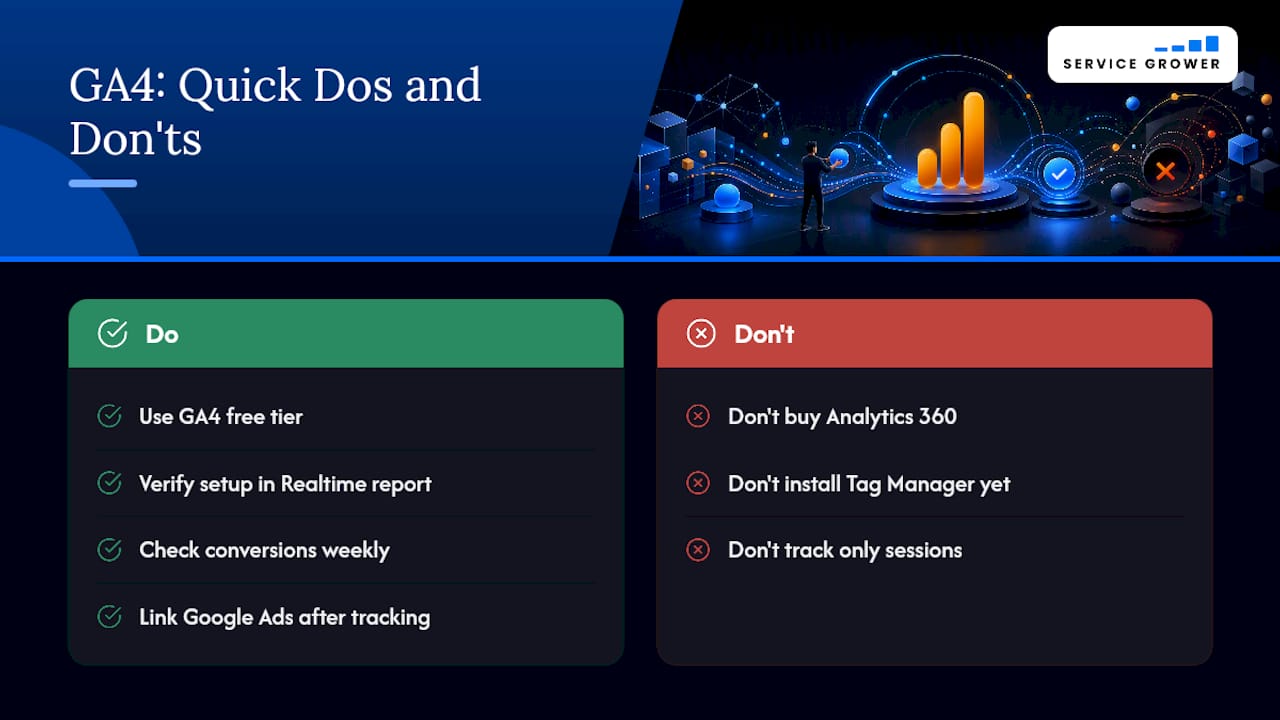
Once conversions are tracked reliably, yes. The link shows cost and conversion data together, which is the fastest way to see whether ad spend is actually working.
Sources
- Analytics for beginners and small businesses | Google Analytics | Google for Developers
- Google Analytics Tools & Solutions for your Business
- The Minimalist GA4 Setup for B2B Startups
- Google Analytics Training For Small Businesses and Startups